
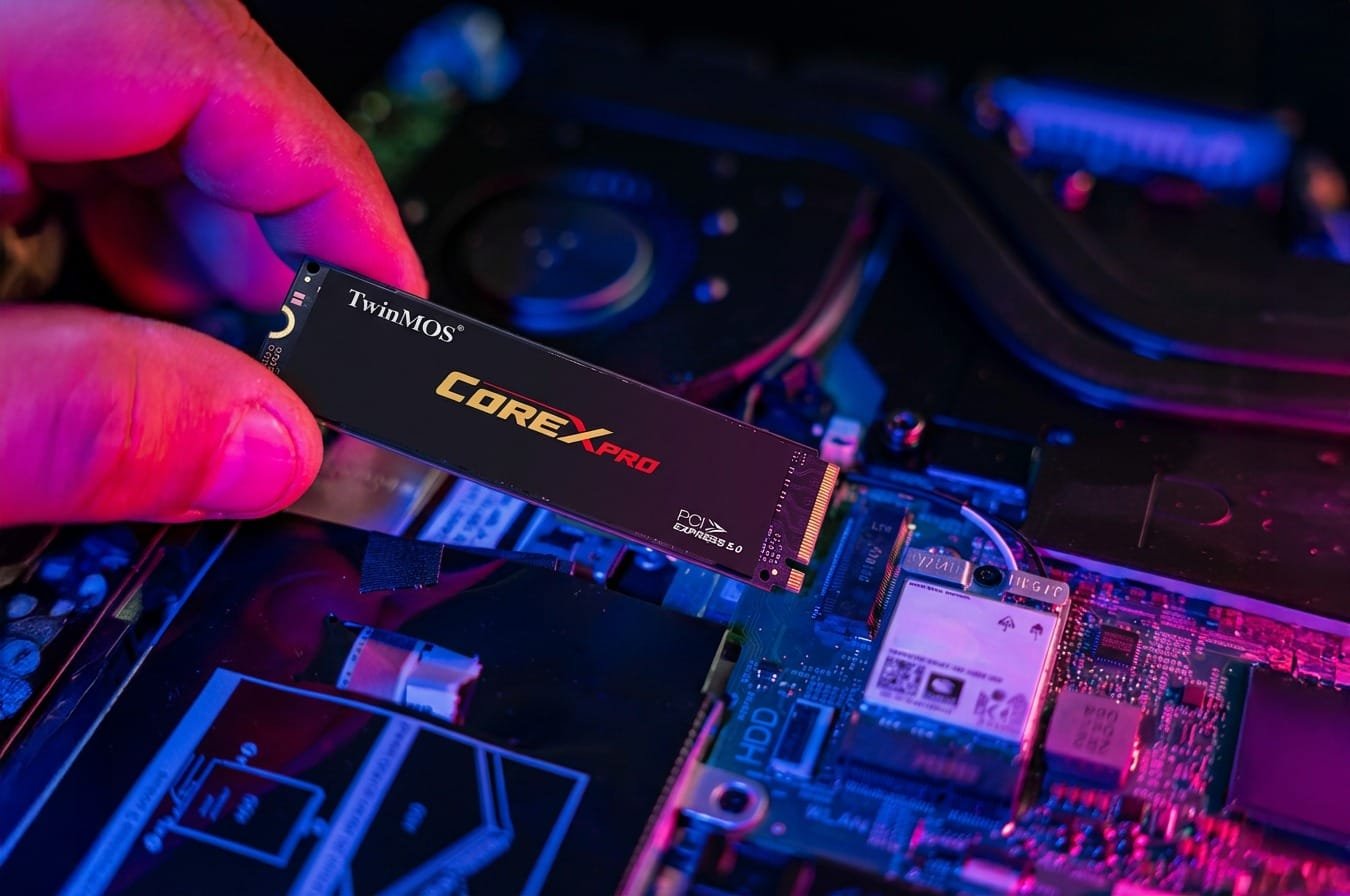
Fortunately, you don’t always need a new one if your laptop feels slow to start up or access apps. In most cases, the greatest bottleneck is storage. Switching to an NVMe SSD can make an aging laptop feel surprisingly new.
This guide explains how an NVMe upgrade works and why it is worth your time, all while telling you about how TwinMOS’s NVMe SSDs can revive your laptop without any cost of replacement.
Why Old Laptops Slow Down
Laptops age, over time, that’s not just what happens. Outdated parts hold them back. Old-fashioned spinning hard drives and early generation SSDs simply don’t have the ability to read and write data quickly enough to keep up with modern software.
Common symptoms include:
- Long boot times
- Slow file transfers
- Lag when multitasking
- Delays when launching everyday apps
The processor and memory are possibly fine. The chain is usually as strong as its weakest link.
What Makes NVMe Different
NVMe (Non-Volatile Memory Express) is a new, rapidly emerging protocol for the next generation of scalably performance-optimized solid-State drives. While older SATA drives plug into the motherboard like a traditional hard drive, NMVe SSDs are mounted directly onto the board via its M.2 interface to achieve much faster data retrievals.
Key advantages of NVMe SSDs:
- Faster boot and shutdown times
- Near-instant app launches
- Smooth multitasking
- Less power use vs. HDDs
Put into practical terms, jobs that used to take minutes can be done in seconds.
HDD vs SSD: What’s the Real Difference?
When we talk to users planning an upgrade, this is the first question we hear: “Is switching from HDD to SSD really worth it?”
Short answer: Yes—by a lot.
Let’s break it down in plain terms.
Speed: Night and Day
A traditional HDD uses spinning disks and a moving arm. That physical movement slows everything down.
An SSD has no moving parts. Data is accessed instantly.
What that means for you:
- Boot time drops from minutes to seconds
- Apps open almost instantly
- File transfers feel effortless
If you’ve ever watched a loading spinner and sighed—that’s your HDD holding you back.
Durability & Reliability
HDDs are mechanical. Drops, shocks, or even long-term wear can cause failure.
SSDs are solid-state, making them:
- More shock-resistant
- Less prone to mechanical failure
- Better for laptops and portable systems
For people who travel, work remotely, or game on the go, SSDs are simply safer.
Power Efficiency & Heat
HDDs consume more power and generate more heat because of their moving components.
SSDs are:
- More power-efficient
- Cooler under load
- Better for battery life on laptops
That translates into longer usage time and a quieter system—no spinning, no vibration.
Capacity vs Performance (The Only HDD Advantage)
HDDs still win in one area: cost per gigabyte.
- HDDs are cheaper for massive storage (archives, backups)
- SSDs prioritize performance over raw capacity
Our take?
Use SSDs for your OS and applications, and HDDs only if you need large, low-cost storage.
HDD vs SSD at a Glance
| Feature | HDD | SSD |
| Speed | Slow | Extremely fast |
| Durability | Fragile | Shock-resistant |
| Noise | Audible | Silent |
| Power Use | Higher | Lower |
| Best For | Bulk storage | OS, apps, daily use |
Why Choose a TwinMOS NVMe SSD
TwinMOS focuses on reliable storage solutions built for real-world use, not just benchmarks. Their NVMe SSDs balance speed, stability, and compatibility, making them a solid option for laptop upgrades.
Benefits include:
- Consistent high-speed performance
- Efficient heat management
- Multiple capacity options for different needs
- Compatibility with a wide range of laptops
For users upgrading older systems, reliability matters as much as speed.
Before You Upgrade: What to Check
Not every laptop supports NVMe, so a quick check is important.
- M.2 Slot Availability
Look up your laptop model to confirm it has an M.2 slot that supports NVMe, not just SATA. - BIOS Support
Most laptops made in the last several years support NVMe, but a BIOS update may be required. - Form Factor
Check whether your laptop supports 2280 (the most common NVMe size).
If you’re unsure, your laptop’s manufacturer website or service manual usually has clear specifications.
How to Install an NVMe SSD (Overview)
You needn’t be particularly tech-savvy — patience and a few simple tools are all you really need.
Basic steps:
- Shutdown the laptop if you can, remove the battery.
- Open the back panel carefully
- Hook in the TwinMOS NVMe SSD at an angle in the M.2 slot
- Use the mounting screw to fasten it.
- Close the panel and power on
After installation you have the option of cloning your old drive or getting a fresh OS install.
Performance You’ll Notice Right Away
Everyone, who upgraded say that it’s working good immediately:
- Boot times go from minutes to seconds
- File transfers feel instant
- System responsiveness is better on all levels
Even older CPUs feel faster because they are no longer waiting on slow storage.
Upgrading an Old Laptop: Worth It or a Waste of Money?
In many cases, yes. Upgrading to an NVMe SSD costs a lot less than a new laptop and results in an obvious improvement in performance. If your screen, keyboard and battery aren’t in terrible condition, this one upgrade could literally add years to your laptop’s life.
Frequently Asked Questions (FAQ)
What is an NVMe SSD?
An NVMe SSD is an extremely fast solid-state drive that connects to your system’s motherboard via the NVMe protocol and has far faster read and writes speeds than standard SATA-based SSDs or traditional hard drives.
Can I upgrade my old laptop with an NVMe SSD?
It was NVMe or not at all, wasn’t it and YES With an NVMe compatible M.2 slot and BIOS support: First ensure that your laptop specs fit.
Will an NVMe SSD really make my laptop faster?
Yes. NVMe SSDs deliver a massive reduction in system boot up time, and quicker loading applications and files all round.
Are TwinMOS NVMe SSDs reliable?
TwinMOS NVMe SSDs are designed for consistent performance and long-term reliability, making them suitable for everyday computing and upgrades.
Do I need professional help to install an NVMe SSD?
For the most part, a user can install an NVMe SSD with just some basic tools and gentle handling. If opening your laptop makes you uncomfortable, a technician can assist.
Is NVMe better than SATA SSD for laptops?
NVMe SSDs are significantly faster than SATA SSDs. It’s the performance pick for anyone whose laptop supports NVMe.

