
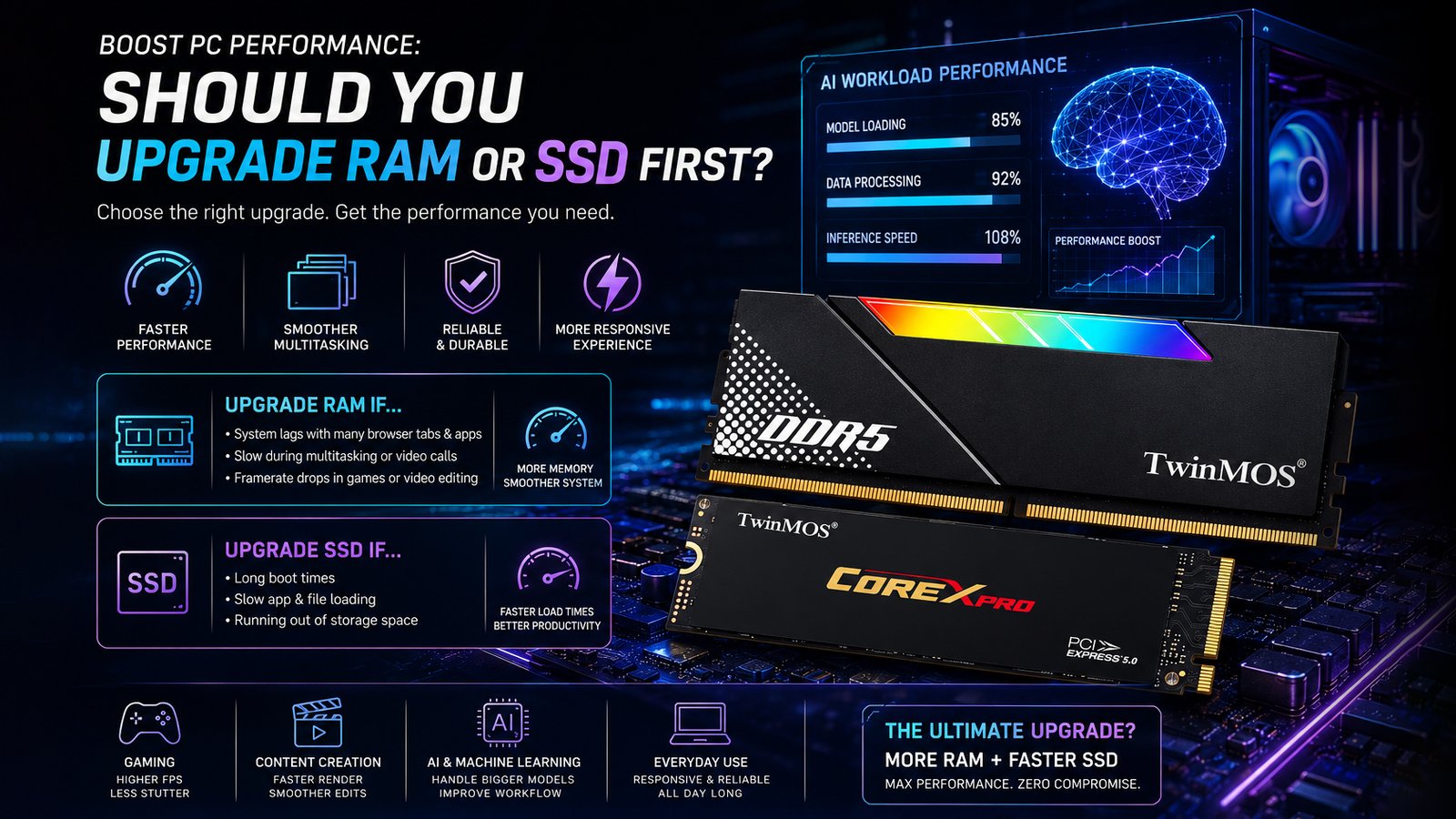
A degrading PC experience is rarely a sudden failure. It is typically a creeping inefficiency—a few extra seconds during the boot sequence, a stutter when switching between browser tabs, or a momentary freeze during a video call. For most users, the instinctive reaction is to shop for a new machine or purchase the most expensive component available. However, high-performance hardware only delivers value if it addresses the specific bottleneck restricting the system. Blindly purchasing the newest components without a strategy often results in a poor return on investment.
The most common point of confusion involves the distinction between “memory” and “storage.” While users often use these terms interchangeably, they serve fundamentally different roles in your computer’s architecture. Deciding which to upgrade requires a clinical look at how your system handles data. Before spending your budget, you must determine whether the PC is struggling to juggle active tasks or failing to access saved data quickly enough. Understanding this functional divide is the first step toward revitalizing a struggling machine.
Functional Architecture: Temporary Memory vs. Permanent Storage
To optimize a PC, one must understand the movement of data between the processor and its support components. Random Access Memory (RAM) acts as the “short-term” partner to the CPU, facilitating immediate task processing by providing a high-speed workspace for active data. In contrast, Storage (SSD or HDD) serves as the “long-term” retention center where applications, saved documents, and the operating system reside permanently.
Volatility represents the critical differentiator here. RAM is volatile memory; it requires a constant electric charge to maintain data. When power is lost or the PC is shut down, the RAM clears entirely. Storage is non-volatile, meaning it retains data even when the system is powered off. These two components work in a collaborative cycle: the system retrieves an application from the storage drive and loads it into the RAM so the processor can work with it over a 64-bit data bus.
| RAM (Memory) | SSD/HDD (Storage) |
|---|---|
| Volatility: Volatile (Clears on power-off) | Volatility: Non-volatile (Retains data) |
| Speed: Extremely High Bandwidth | Speed: Moderate to High (SATA or NVMe) |
| Primary Function: Facilitates immediate tasks | Primary Function: Long-term data retention |
Diagnosing the RAM Bottleneck: When Capacity Limits Smoothness
RAM is the core of system stability and multitasking fluidity. When a system reaches its physical RAM capacity, it is forced to utilize “virtual memory.” This process involves moving active data to a “page file” on the storage drive. Because even the fastest NVMe SSD cannot match the native speed of RAM, the result is noticeable system lag, stuttering, and potential application crashes.
If a computer freezes when multiple browser tabs are open or slows down during intensive multitasking—such as attending a virtual meeting while editing a large document—the RAM is likely the bottleneck. Based on current software demands, 16GB to 32GB is increasingly becoming the baseline for a high-quality experience. The following capacity guidelines serve as a reliable baseline:
- 8GB: The bare minimum for basic office tasks and web browsing.
- 16GB: Likely represents the best value for most users and the “sweet spot” for gaming.
- 32GB–64GB: The recommended path for future-proofing and high-performance professional workloads like 4K video editing or 3D modeling.
While adding more RAM can resolve stability and multitasking smoothness, even an infinite amount of memory cannot overcome the limitations of a slow storage drive during the initial boot sequence.
The SSD Advantage: Accelerating Access and Load Times
While RAM dictates how many things you can do at once, the storage drive determines the “perceived speed” of the PC. This includes boot times, application launches, and the time required to save massive files. The shift from traditional Hard Disk Drives (HDDs) to Solid State Drives (SSDs) remains the single most impactful upgrade for older machines. The perceived speed difference is largely a matter of interface bandwidth; modern NVMe drives far exceed the limits of older SATA connections.
SSDs utilize NAND Flash memory, categorized by how many bits are stored per cell. TLC (Triple-Level Cell) offers the most reliable balance of performance and durability for consumer use. While QLC (Quad-Level Cell) was once viewed with skepticism regarding longevity, modern 3D QLC technology is significantly more durable than earlier iterations—withstanding up to ten times more write cycles than originally predicted. Modern consumer SSDs often boast a Mean Time Between Failures (MTBF) of 1.6 to 2.0 million hours, ensuring long-term reliability.
Symptoms of a storage bottleneck include sluggish boot sequences and “out of space” notifications. For laptop users, an SSD also increases battery life due to the lack of moving parts and lower power requirements compared to an HDD. Regarding capacity, 500GB is the functional minimum, though 1TB to 2TB is the mainstream optimal range for modern OS and gaming drives. Many professionals now utilize dual-SSD setups—one for the OS and applications and a second for personal data—to maximize organization and performance.
The Strategic Decision Matrix: Prioritizing Your Spend
Targeting the specific bottleneck is essential to avoid wasting money on unnecessary high-end specifications. Use the following logic to prioritize the upgrade path:
- The HDD Priority: If the system uses a traditional HDD as its primary boot drive, an SSD upgrade is the absolute priority. This provides the most dramatic improvement in general responsiveness and boot times.
- The Multitasking Priority: If the system already uses an SSD but lags when switching between applications or managing dozens of browser tabs, upgrade the RAM to at least 16GB, or 32GB for future-proofing.
- The High-Capacity Path: If the current drive is full or slowing down as it nears capacity, moving to a 1TB or 2TB NVMe SSD provides both the space and the bandwidth necessary for modern software.
An SSD makes the PC feel fast during file access, but it cannot solve the hitching issues caused by a lack of RAM during heavy workloads. Conversely, RAM cannot accelerate a slow boot sequence if the system is loading from a legacy HDD.
Professional Hardware Solutions: The TwinMOS Approach
Identifying the bottleneck is only half the battle; the final step is selecting reliable hardware. TwinMOS provides a comprehensive range of solutions tailored to these specific upgrade paths. For those seeking to improve system stability, TwinMOS offers a variety of DDR4 and DDR5 memory modules designed for both desktop and laptop form factors in capacities ranging from 8GB to 64GB kits.
If the diagnosis points toward a storage bottleneck, the TwinMOS catalog includes high-speed NVMe and SATA SSDs that can significantly reduce boot times and accelerate application launches. These products represent a logical choice for users who have analyzed their system needs and require dependable components to restore performance. Before purchasing a module or drive, consult your motherboard’s Qualified Vendor List (QVL) or a compatibility tool to ensure a seamless hardware integration.your system.
FAQ
It depends on your primary performance bottleneck. If your PC takes a long time to boot or launch apps, an SSD is your top priority. If your system lags or freezes when you have many browser tabs or applications open, a RAM upgrade will provide the most noticeable improvement.
For most users, 16GB is the “sweet spot” for gaming, standard video editing, and heavy multitasking. If you are doing professional 4K video editing or complex 3D modeling, you should consider upgrading to 32GB to 64GB+.
Think of them as your computer’s memory systems: RAM is your high-speed, short-term workspace for active tasks (data clears when you power off), while an SSD acts as your long-term storage, keeping your operating system and files saved even when the computer is turned off.
When you run out of physical RAM, your system relies on “Virtual Memory,” which forces the computer to use your slower storage drive as temporary memory. This “page file” usage causes significant lag and system stuttering.
Yes, if your system still uses an old, mechanical HDD, upgrading to an SSD should be your top priority. An SSD retrieves data at electronic speeds, whereas an HDD is limited by slow, mechanical moving parts, which creates a massive bottleneck for your operating system.
Yes, and this is often the most effective way to revitalize an older machine. For the best performance, many users install their operating system on a high-speed NVMe SSD and ensure they have at least 16GB of RAM for smooth daily operations.

